Winchester Public Schools Enrollment Instructions – BenSelect 2024-2025

Below is a series of instructions outlining the online self-enrollment process. Please have the following information available before you begin:

– Username, password, and enrollment website URL from Step 1 of this page

– Dates of birth and social security numbers of your spouse and any dependents you wish to enroll

– Beneficiary names and social security numbers

Helpful Tips:

– If you are a new employee, please refer here for more information or contact PGB’s Employee Services at 800-387-5955 between 8:30am and 5:00pm for assistance.

– If you are an existing employee and unable to log into the online system, please contact PGB’s Employee Services at 800-387-5955, or speak with the Benefits Representative assigned to your location.

How To Enroll:

1. Logging In 

Enter your User Name: Social Security Number with or without dashes (ex. 123-45-6789 or 123456789)

Enter your Password: Last 4 numbers of your Social Security Number followed by last 2 numbers of your Date of Birth year (ex. 678970)

To login, visit: harmony.benselect.com/winchester

2. New PIN

The screen prompts you to create a NEW PIN [__________].

3. Security Questions

Choose a security question and enter answer [__________].

4. Confirm

Confirm (or enter) an email address.

5. Save New PIN

Click on ‘Save New PIN’ to continue to the enrollment welcome screen.

6. Click Next

From the welcome screen click “Next”.

7. Personal Information

The screen shows ‘Personal Information’. Verify that the information is correct and enter the additional required information (marital status, work phone, e-mail address). Click ‘Next’.

8. Adding Family Members

The screen allows you to add family members. It is only necessary to enter family member information if adding or including family members in your coverage. Click ‘Next’.

9. Benefit Summary

The screen shows ‘Benefit Summary’. Review your current benefits and make changes/selections for the upcoming plan year.

10. Sign & Submit

Click ‘Sign & Submit’ once you have decided which benefits to enroll in.

11. Review

Review your coverage. If any items are ‘Pending’, you will need to decide whether to enroll or decline this benefit.

12. Next

Click ‘Next’ to review and electronically sign the authorization for your benefit elections.

13. Sign Form

Review the confirmation, then if you are satisfied with your elections, enter your PIN and click ‘Sign Form’.

14. Download & Print

Click ‘Download & Print’ to print a copy of your elections, or download and save the document. Please do not forget this important step! Click ‘Log Out’.

Winchester Public Schools Important Information About Your Enrollment 2024-2025

IN-PERSON & SELF-ENROLL

During your open enrollment period, a PGB Benefits Representative will be available by appointment to meet with you one-on-one to help you evaluate your benefits based on your individual and family needs, answer any questions you may have, and assist you in the enrollment process. If you prefer, you may also self-enroll online following the instructions on the Enrollment Instructions page of this site.

OPEN ENROLLMENT PERIOD: May 1, 2024 – May 15, 2024

YOU CAN MAKE THE FOLLOWING BENEFIT ELECTIONS DURING THE OPEN ENROLLMENT PERIOD:

– Enroll in, change, or cancel The Local Choice benefits (Health, Dental, and Vision).**
– Enroll in, change, or cancel Health Savings Accounts.
– Enroll/Re-Enroll in Flexible Spending Accounts.+
– Enroll in, change, or cancel Long-Term Care Benefits.
– Enroll in, change, or cancel Colonial coverage.

+You will need to re-enroll in the Flexible Spending Accounts if you want them to continue each year.

**The Local Choice Benefits are included in this booklet for informational purposes only.

ACCESS YOUR BENEFITS OPTIONS WHENEVER, WHEREVER.

You can view details about what benefits your employer offers, view educational videos about all of your benefits, download forms, chat with one of our knowledgeable Service Center Specialists, and more on your personalized benefits website.

IMPORTANT NOTE & DISCLAIMER

This is neither an insurance contract nor a Summary Plan Description and only the actual policy provisions will prevail. All information on this microsite including premiums quoted is subject to change. All policy descriptions are for information purposes only. Your actual policies may be different than those on this microsite.

Winchester Public Schools Overview of Benefits 2024-2025

Pre-Tax Benefits

Health Insurance: Anthem – The Local Choice**

Dental Insurance: Delta Dental of VA – The Local Choice**

Vision Insurance: Blue View Vision – The Local Choice**

Health Savings Accounts: Ameriflex
– Employee Maximum $4,150/year
– Family Maximum $8,300/year
HSA plans can only be established in conjunction with a qualified High-Deductible Health Plan (HDHP)

Flexible Spending Accounts: Ameriflex
– Medical Reimbursement Maximum: $3,200/year
– Dependent Care Reimbursement Maximum: $5,000/year
– Limited Purpose Reimbursement Maximum: $3,200/year
You will need to re-enroll in the Flexible Spending Accounts if you want them to continue next year.
IF YOU DO NOT RE-ENROLL, YOUR CONTRIBUTION WILL STOP EFFECTIVE JUNE 30, 2024.

Cancer Benefits: Colonial Life

Accident BenefitsColonial Life

Medical Bridge BenefitsColonial Life


Post-Tax Benefits

Disability BenefitsColonial Life

Critical Illness BenefitsColonial Life

Life InsuranceColonial Life
– Term Life Insurance
– Whole Life Insurance

Long Term Care: CHUBB


Additional Benefits

Student Loan Assistance Program: GradFin

 

**The Local Choice Benefits are included in this booklet for informational purposes only.


Enrollment Period: May 1, 2024 – May 15, 2024

Effective Dates: July 1, 2024 – June 30, 2025


ELIGIBILITY:

– All full-time employees are eligible for benefits.

IMPORTANT NOTICES:

When do my benefits start? The plan year for The Local Choice Benefits (Anthem Health, Delta Dental & Blue View Vision), Savings Accounts, Spending Accounts, Colonial Insurance Products, and CHUBB Long Term Care runs from July 1, 2024 through June 30, 2025.

When do my deductions start? Deductions for The Local Choice Benefits (Anthem Health, Delta Dental & Blue View Vision) start June 2024 for eligible employees. Deductions for Savings Accounts, Spending Accounts, Colonial Insurance Products, and CHUBB Long Term Care start July 2024 for eligible employees.

Why have my Cancer, Accident, or Medical Bridge benefits not started yet? The Colonial Cancer plan and the Health Screening Rider on the Colonial Accident and Colonial Medical Bridge plan have a 30-day waiting period for new enrollees. Coverage, therefore, will not begin until July 31, 2024.

How do Flexible Spending Account (FSA) funds work, and do my FSA funds have to be used by a specific deadline? Flexible Spending Account expenses must be incurred during the plan year to be eligible for reimbursement. After the plan year ends, an employee has 90 days to submit claims for incurred qualified spending account expenses (or 30 days after employment termination date). If employment is terminated before the plan year ends, the spending account also ends. Failure to use all allotted funds in the FSA account will result in a “Use It or Lose It” scenario. Your plan includes a grace period which is an additional 2.5 months (running July 1, 2025, through September 15, 2025) during which you can incur eligible expenses that can be reimbursed. Therefore, you have from July 1, 2024 through September 15, 2025 to incur qualified expenses eligible for reimbursement. If you do not incur qualified expenses by September 15, 2025 and/or file by September 30, 2025 any contributions are forfeited under the “Use It or Lose It” rule.

My spouse is enrolled in an Health Savings Account (HSA), am I eligible for an FSA? As a married couple, one spouse cannot be enrolled in a Medical Reimbursement FSA at the same time the other opens or contributes to an HSA.

How do Dependent Care Account (DCA) funds work and when do they need to be used? Dependent Care Accounts are like FSA accounts and allow you to request reimbursement up to your current balance. However, you cannot receive more reimbursement than what has been deducted from your pay. It’s important to note that any remaining funds in your DCA account must be utilized before the deadline. Failure to use all allotted funds in the DCA account will result in a “Use It or Lose It” scenario.

When will I get my card? If you will be receiving a new debit card, whether you are a new participant or to replace your expired card, please be aware that it may take up to 30 days following your plan effective date for your card to arrive. Your card will be delivered by mail in a plain white envelope. During this time you may use manual claim forms for eligible expenses. Please note that your debit card is good through the expiration date printed on the card.

I want to sign my family up for benefits as well, what information will I need? If signing up for any coverage on your spouse and/or children, please have their dates of birth and social security numbers available when speaking with the Benefits Representative.

What is the difference between pre and post-tax benefits? Pre-tax benefit contributions are taken from an employee’s paycheck before state and federal taxes are applied. Post-tax benefit contributions are paid after taxes are deducted. It’s important to note that some coverages may still be subject to taxes even if paid for through pre-tax deduction or employee contribution.

Can I change my benefit elections outside of the enrollment period? Elections made during this enrollment period CANNOT BE CHANGED AFTER THE ENROLLMENT PERIOD unless there is a family status change, otherwise known as a qualifying life event (Mid-Year Events), as defined by the Internal Revenue Code. Examples of Mid-Year Events can be found here. Once a Mid-Year Event has occurred, an employee has 30 days to notify PGB’s VA Employee Services at 1-800-387-5955 to request a change in elections.

I have a pre-existing condition. Will I still be covered? Some policies may include a pre-existing condition clause. Please read your policy carefully for full details.

Mitchell County Schools Forms & Links 2024-2025

Colonial Life

Dental

Vision

Student Loan Assistance Program

Flex Accounts

Telemedicine Benefits

Pet Insurance

Mitchell County Schools Enrollment Instructions – Harmony 2024-2025

Below is a series of instructions outlining the online self-enrollment process. Please have the following information available before you begin:

– Username, password, and enrollment website URL from Step 1 of this page

– Dates of birth and social security numbers of your spouse and any dependents you wish to enroll

– Beneficiary names and social security numbers

Helpful Tips:

– If you are a new employee, please refer here for more information or contact PGB’s Employee Services at 888-662-7500 between 8:30am and 5:00pm for assistance.

– If you are an existing employee and unable to login to the online system, please contact the Harmony Help Desk at 866-875-4772 between 8:30am and 6:00pm, or speak with the Benefits Representative assigned to your location.

How To Enroll:

1. Logging In 

Enter your User Name: MIT4V2R- and then Last Name and then Last 4 of Social Security Number (MIT4V2R-SMITH6789)

Enter your Password: Four digit Year of Birth and then Last 4 of Social Security Number (19766789)

To login, visit: https://harmonyenroll.coloniallife.com

2. Creating a New Password

You will be prompted to create a new password. Your password must have: 1 lowercase letter, 1 uppercase letter, 1 number, and 8 characters minimum.

Your password cannot include: first name, last name, spaces, special characters (such as ! $ % &), or User ID.

3. Secure Your Account

Choose a security question and enter answer.

4. Begin Enrollment

Click on ‘I Agree’ and then ‘Enter My Enrollment’.

5. Verification

The screen will display ‘Me & My Family’. Verify that the information is correct and enter the additional required information requested (title, marital status, work phone, e-mail address).

Click ‘Save & Continue’ twice.

6. Family Member Information

The screen will display the option to add family members. It is only necessary to enter family member information if adding or including family members in your coverage.

Click ‘Continue’.

7. Personal Information

The screen shows updated personal information. Verify that the information is correct and make changes if necessary.

Click ‘Continue’.

8. Review Elections

The screen shows ‘My Benefits’. Review your current benefits and make changes/selections for the upcoming plan year.

9. Finish Enrollment
10. Confirm Elections

Click ‘I Agree’ to electronically sign the authorization for your benefit elections.

11. Print & Log Out

Click ‘Print a copy of your Elections’ to print a copy of your elections, or download and save the document. Please do not forget this important step!

Click ‘Log out & close your browser window’ and click ‘Log Out’.

Mitchell County Schools Important Information About Your Enrollment 2024-2025

IN-PERSON & SELF-ENROLL

During your open enrollment period, a PGB Benefits Representative will be available by appointment to meet with you one-on-one to help you evaluate your benefits based on your individual and family needs, answer any questions you may have, and assist you in the enrollment process. If you prefer, you may also self-enroll online following the instructions on the Enrollment Instructions page of this site.

OPEN ENROLLMENT PERIOD: April 29, 2024 – May 30, 2024

YOU CAN MAKE THE FOLLOWING BENEFIT ELECTIONS DURING THE OPEN ENROLLMENT PERIOD:

– Enroll/Re-Enroll in Flexible Spending Accounts.⁺

– Enroll in, change, or cancel Dental Insurance.

– Enroll in, change, or cancel Vision Insurance.

– Enroll, change, or cancel your Group Term Life Insurance

– Enroll, change, or cancel your Telemedicine coverage (Direct Billing only*)**

– Enroll in, change, or cancel Pet Insurance (Direct Billing only*)**

– Enroll in, change, or cancel Colonial Coverage.


⁺You will need to re-enroll in the Flexible Spending Accounts if you want them to continue each year.

*The Telemedicine plan and Pet Insurance available by Direct Billing only. No deductions will be taken via payroll deduction.

**Please see the coordinating pages of your Benefits Guide for enrollment instructions for the Telemedicine plan and Pet Insurance.


ACCESS YOUR BENEFITS OPTIONS WHENEVER, WHEREVER.

You can view details about what benefits your employer offers, view educational videos about all of your benefits, download forms, chat with one of our knowledgeable Service Center Specialists, and more on your personalized benefits website.

IMPORTANT NOTE & DISCLAIMER

This is neither an insurance contract nor a Summary Plan Description and only the actual policy provisions will prevail. All information on this microsite including premiums quoted is subject to change. All policy descriptions are for information purposes only. Your actual policies may be different than those on this microsite.

Mitchell County Schools Overview of Benefits 2024-2025

Pre-Tax Benefits

Flexible Spending Accounts: Ameriflex
– Medical Reimbursement, Minimum $250/year, Maximum: $3,200/year
– Dependent Care Reimbursement Maximum: $5,000/year
You will need to re-enroll in the Flexible Spending Accounts if you want them to continue next year.
IF YOU DO NOT RE-ENROLL, YOUR CONTRIBUTION WILL STOP EFFECTIVE August 31, 2024.

Dental Insurance: Delta Dental

Vision Insurance: Superior Vision

Cancer Benefits: Colonial Life

Accident BenefitsColonial Life

Medical Bridge BenefitsColonial Life


Post-Tax Benefits

Disability BenefitsColonial Life

Critical Illness BenefitsColonial Life

Life InsuranceColonial Life
– Term Life Insurance
– Whole Life Insurance
– Group Term Life Insurance (Including EAP + Work/Life Programs)

Telemedicine Benefits: Call A Doctor Plus – Direct Billing Only

Pet Insurance: Nationwide – Direct Billing Only

 

Additional Benefits

Student Loan Assistance Program: GradFin


Please note your insurance products will remain in effect unless you speak with a representative to change them.


Enrollment Period: April 29, 2024 – May 30, 2024

Effective Dates: September 1, 2024 – August 31, 2025


ELIGIBILITY:

– Employees must work 30 hours a week to qualify for benefits.

IMPORTANT NOTICES:

When do my benefits start? The plan year for Ameriflex Spending Accounts, Superior Vision Insurance, Delta Dental Insurance, Nationwide Pet Insurance, Call a Doc+ Telemedicine, Colonial Insurance Products and Group Term Life runs from September 1, 2024 through August 31, 2025.

When do my deductions start? Deductions for Ameriflex Spending Accounts, Superior Vision Insurance, Delta Dental Insurance, Colonial Insurance Products and Group Term Life start September 2024 for enrolled employees. The Call A Doctor Plus Telemedicine and Nationwide Pet Insurance plans are available by Direct Billing only. No deductions will be taken via payroll deduction.

Why have my Cancer, Accident, or Medical Bridge benefits not started yet? The Colonial Cancer plan and the Health Screening Rider on the Colonial Accident and Colonial Medical Bridge plan have a 30-day waiting period for new enrollees. Coverage, therefore, will not begin until October 1, 2024.

What is an EAP? Your Group Term Life coverage includes Health Advocate Employee Assistance + Work/Life Programs. An Employee Assistance Program (EAP) offers confidential support and resources for personal or work-related challenges and concerns. Please see the Group Term Life pages of this benefit guide for more details and contact information.

How do Flexible Spending Account (FSA) funds work, and do my FSA funds have to be used by a specific deadline? Flexible Spending Account expenses must be incurred during the plan year to be eligible for reimbursement. After the plan year ends, an employee has 90 days to submit claims for incurred qualified spending account expenses (or 90 days after employment termination date). If employment is terminated before the plan year ends, the spending account also ends. Failure to use all allotted funds in the FSA account will result in a “Use It or Lose It” scenario.

My spouse is enrolled in an Health Savings Account (HSA), am I eligible for an FSA? As a married couple, one spouse cannot be enrolled in a Medical Reimbursement FSA at the same time the other opens or contributes to an HSA.

How do Dependent Care Account (DCA) funds work and when do they need to be used? Dependent Care Accounts are like FSA accounts and allow you to request reimbursement up to your current balance. However, you cannot receive more reimbursement than what has been deducted from your pay. It’s important to note that any remaining funds in your DCA account must be utilized before the deadline. Failure to use all allotted funds in the DCA account will result in a “Use It or Lose It” scenario.

When will I get my card? If you will be receiving a new debit card, whether you are a new participant or to replace your expired card, please be aware that it may take up to 30 days following your plan effective date for your card to arrive. Your card will be delivered by mail in a plain white envelope. During this time you may use manual claim forms for eligible expenses. Please note that your debit card is good through the expiration date printed on the card.

I want to sign my family up for benefits as well, what information will I need? If signing up for any coverage on your spouse and/or children, please have their dates of birth and social security numbers available when speaking with the Benefits Representative.

What is the difference between pre and post-tax benefits? Pre-tax benefit contributions are taken from an employee’s paycheck before state and federal taxes are applied. Post-tax benefit contributions are paid after taxes are deducted. It’s important to note that some coverages may still be subject to taxes even if paid for through pre-tax deduction or employee contribution.

Can I change my benefit elections outside of the enrollment period? Elections made during this enrollment period CANNOT BE CHANGED AFTER THE ENROLLMENT PERIOD unless there is a family status change, otherwise known as a qualifying life event (QLE), as defined by the Internal Revenue Code. Examples of a QLE can be found here.

I have a pre-existing condition. Will I still be covered? Some policies may include a pre-existing condition clause. Please read your policy carefully for full details.

Martinsville City Public Schools Forms & Links 2024-2025

Colonial Life

Health

Dental

Vision

Long Term Disability

Student Loan Assistance Program

Health Savings Accounts

Martinsville City Public Schools The HSA Store 2024-2025

Everyday health and wellness essentials all in one place and guaranteed eligible. Pierce Group Benefits partners with the HSA Store to provide one convenient location for Health Savings Account holders to maximize their long-term health savings and help ease the financial burden of medical needs, should they arise. Through our partnership, we’re also here to help answer the many questions that come along with having a Health Savings Account!

– The largest selection of guaranteed HSA-eligible products

– Phone and live chat support available 24 hours a day / 7 days a week

– Fast and free shipping on orders over $50

– Use your HSA card or any other major credit card for purchases

BONUS: Get $20 off any order of $150+ with code PGB20HSA (one use per customer).

Other Great HSA Store Resources Available To You

Eligibility List: A comprehensive list of eligible products and services

HSA Calculator: Estimate how much you can save with an HSA

Learning Center: Easy tips and resources for living with an HSA

Savings Center: Where you can save even more on HSA-eligible essentials

HSAPerks: Take your health and funds further with the HSA Store rewards program


NEED HELP? WE’VE GOT YOU COVERED!

HSA Store Customer Service

HSA Store Frequently Asked Questions

Martinsville City Public Schools Flex Facts HSA 2024-2025

A personal tax-free savings account for healthcare expenses and investing. 

Use the below information to determine if a Health Savings Account (HSA) is right for you and how to best take advantage of an HSA account.

How It Works

An HSA is a personal savings account that allows you to set aside pre-tax dollars for current and future healthcare expenses for you and your dependents, even if they are not covered under your primary health plan. You are eligible to open an HSA if you are also enrolled in an HSA-eligible high-deductible health plan.

You choose an annual election amount, up to $4,150 for individuals and $8,300 for families. The money is placed in your account via payroll deduction, online banking transfer, or a direct contribution. Once your account is funded, you can choose to use the money to pay for current healthcare expenses or keep the funds in your account and watch your savings grow.

If you are 55 or over, you have the option to contribute an additional $1,000 annually.

As a married couple, one spouse cannot be enrolled in an FSA at the same time the other is contributing to an HSA.

Why Should I enroll in an HSA?

High-deductible health plans typically have lower monthly premiums and greater out-of-pocket costs. An HSA helps ensure you have money set aside to pay for out-of-pocket healthcare expenses.

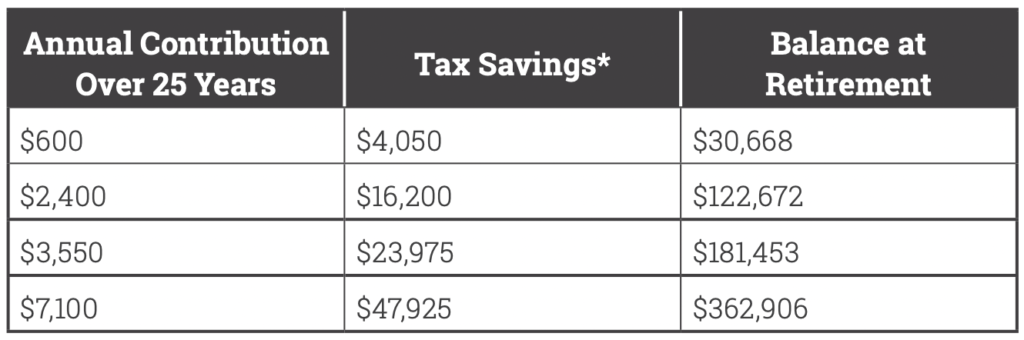
But an HSA is also a powerful investment vehicle and can be a smart addition to your retirement strategy. What makes an HSA such a great retirement investment tool? Simply put, money goes into an HSA tax-free, grows tax-free, and comes out tax free. That means you will never be taxed when you use HSA dollars for qualified medical expenses. No other investment account offers this benefit!

How much can you potentially save for retirement? See below!

flex facts hsa investment chart

Qualifying Expenses

The IRS determines what expenses are eligible under an HSA. Below are some examples of common eligible expenses:

– Copays, deductible payments, coinsurance

– Doctor office visits, exams, lab work, x-rays

– Hospital charges

– Prescription drugs y Dental exams, x-rays, fillings, crowns, orthodontia

– Vision exams, frames, contact lenses, contact lens solution, laser vision correction

– Physical therapy

– Chiropractic care

– Medical supplies and first aid kits

– Prescribed over-the-counter medications

– COBRA premiums

– And much more…

What doesn’t qualify?

Certain expenses are not eligible, for instance:

– Expenses incurred prior to opening your HSA

– Cosmetic procedures or surgery

– Dental products for general health

– Personal hygiene products

For a full list of eligible expenses, go to www.flexfacts.com.

Online & Mobile Access

Get instant access to your account with the Flex Facts Portal and the Flex Facts Mobile App.

– View your account balance and transaction history

– Submit and view claims

– Upload and store receipts

– Make contributions

– Invest HSA funds

– View important alerts and communications

– Sign up for direct deposit

– Sign up for text message alerts

Register for the Flex Facts Participant Portal at www.flexfacts.com. Download the Flex Facts Mobile App on the App Store or Google Play Store.

Helpful Hints

– You must have funds in your HSA before you can spend them.

– You can change your election amount at any time during the plan year.

– You own the HSA, which means the money in the account is yours to keep and stays with you, even if you change medical plans or leave your employer.

– Remember, withdrawals for qualified healthcare expenses are never taxable.

– Be a savvy HSA consumer and ask about the cost of procedures and provider visits to ensure you are getting the best care at the best price.

– Save your receipts because the IRS may audit your HSA transactions.

– Unused funds roll over year to year and once your account balance reaches $1,000 you have the option to invest your funds and accelerate your account savings.

– While your HSA funds are intended for healthcare expenses, once you reach 65 you have the option to use your account for any purpose, without penalty. You’ll just owe income taxes on withdrawals for non-qualified expenses.

– The easiest way to manage your account is online at www.flexfacts.com or through the Flexfacts Mobile App.

Martinsville City Public Schools Enrollment Instructions – BenSelect 2024-2025

Below is a series of instructions outlining the online self-enrollment process. Please have the following information available before you begin:

– Username, password, and enrollment website URL from Step 1 of this page

– Dates of birth and social security numbers of your spouse and any dependents you wish to enroll

– Beneficiary names and social security numbers

Helpful Tips:

– If you are a new employee, please refer here for more information or contact PGB’s Employee Services at 800-387-5955 between 8:30am and 5:00pm for assistance.

– If you are an existing employee and unable to log into the online system, please contact PGB’s Employee Services at 800-387-5955, or speak with the Benefits Representative assigned to your location.

How To Enroll:

1. Logging In 

Enter your User Name: Social Security Number with or without dashes (ex. 123-45-6789 or 123456789)

Enter your Password: Last 4 numbers of your Social Security Number followed by last 2 numbers of your Date of Birth year (ex. 678970)

To login, visit: harmony.benselect.com/martinsville

2. New PIN

The screen prompts you to create a NEW PIN [__________].

3. Security Questions

Choose a security question and enter answer [__________].

4. Confirm

Confirm (or enter) an email address.

5. Save New PIN

Click on ‘Save New PIN’ to continue to the enrollment welcome screen.

6. Click Next

From the welcome screen click “Next”.

7. Personal Information

The screen shows ‘Personal Information’. Verify that the information is correct and enter the additional required information (marital status, work phone, e-mail address). Click ‘Next’.

8. Adding Family Members

The screen allows you to add family members. It is only necessary to enter family member information if adding or including family members in your coverage. Click ‘Next’.

9. Benefit Summary

The screen shows ‘Benefit Summary’. Review your current benefits and make changes/selections for the upcoming plan year.

10. Sign & Submit

Click ‘Sign & Submit’ once you have decided which benefits to enroll in.

11. Review

Review your coverage. If any items are ‘Pending’, you will need to decide whether to enroll or decline this benefit.

12. Next

Click ‘Next’ to review and electronically sign the authorization for your benefit elections.

13. Sign Form

Review the confirmation, then if you are satisfied with your elections, enter your PIN and click ‘Sign Form’.

14. Download & Print

Click ‘Download & Print’ to print a copy of your elections, or download and save the document. Please do not forget this important step! Click ‘Log Out’.

Martinsville City Public Schools Enrollment Instructions – BenSelect

Below is a series of instructions outlining the online self-enrollment process. Please have the following information available before you begin:

– Username, password, and enrollment website URL from Step 1 of this page

– Dates of birth and social security numbers of your spouse and any dependents you wish to enroll

– Beneficiary names and social security numbers

Helpful Tips:

– If you are a new employee, please refer here for more information or contact the PGB Service Center at 800-387-5955 between 8:30am and 5:00pm for assistance.

– If you are an existing employee and unable to log into the online system, please contact the Pierce Group Benefits Service Center at 800-387-5955, or speak with the Benefits Representative assigned to your location.

How To Enroll:

1. Logging In 

Enter your User Name: Social Security Number with or without dashes (ex. 123-45-6789 or 123456789)

Enter your Password: Last 4 numbers of your Social Security Number followed by last 2 numbers of your Date of Birth year (ex. 678970)

To login, visit: harmony.benselect.com/martinsville

2. New PIN

The screen prompts you to create a NEW PIN [__________].

3. Security Questions

Choose a security question and enter answer [__________].

4. Confirm

Confirm (or enter) an email address.

5. Save New PIN

Click on ‘Save New PIN’ to continue to the enrollment welcome screen.

6. Click Next

From the welcome screen click “Next”.

7. Personal Information

The screen shows ‘Personal Information’. Verify that the information is correct and enter the additional required information (marital status, work phone, e-mail address). Click ‘Next’.

8. Adding Family Members

The screen allows you to add family members. It is only necessary to enter family member information if adding or including family members in your coverage. Click ‘Next’.

9. Benefit Summary

The screen shows ‘Benefit Summary’. Review your current benefits and make changes/selections for the upcoming plan year.

10. Sign & Submit

Click ‘Sign & Submit’ once you have decided which benefits to enroll in.

11. Review

Review your coverage. If any items are ‘Pending’, you will need to decide whether to enroll or decline this benefit.

12. Next

Click ‘Next’ to review and electronically sign the authorization for your benefit elections.

13. Sign Form

Review the confirmation, then if you are satisfied with your elections, enter your PIN and click ‘Sign Form’.

14. Download & Print

Click ‘Download & Print’ to print a copy of your elections, or download and save the document. Please do not forget this important step! Click ‘Log Out’.

Martinsville City Public Schools Important Information About Your Enrollment (New Hire) 2024-2025

IN-PERSON & SELF-ENROLL

During your open enrollment period, a PGB Benefits Representative will be available by appointment to meet with you one-on-one to help you evaluate your benefits based on your individual and family needs, answer any questions you may have, and assist you in the enrollment process. If you prefer, you may also self-enroll online following the instructions on the Enrollment Instructions page of this site.

OPEN ENROLLMENT PERIOD: April 29, 2024 – May 24, 2024

YOU CAN MAKE THE FOLLOWING BENEFIT ELECTIONS DURING THE OPEN ENROLLMENT PERIOD:

– Enroll in, change, or cancel Health Insurance.
– Enroll in, change, or cancel Health Savings Accounts.
– Enroll in, change, or cancel Dental Insurance.
– Enroll in, change, or cancel Vision Insurance.
– Enroll in, change, or cancel Long-Term Disability Insurance.
– Enroll in, change, or cancel Colonial coverage.

ACCESS YOUR BENEFITS OPTIONS WHENEVER, WHEREVER.

You can view details about what benefits your employer offers, view educational videos about all of your benefits, download forms, chat with one of our knowledgeable Service Center Specialists, and more on your personalized benefits website.

IMPORTANT NOTE & DISCLAIMER

This is neither an insurance contract nor a Summary Plan Description and only the actual policy provisions will prevail. All information on this microsite including premiums quoted is subject to change. All policy descriptions are for information purposes only. Your actual policies may be different than those on this microsite.